Linux File System
In Linux everything is a file. Really every thing is a file, applications, hardware, network everything. The Linux File System is a structured method of storing and organizing data on a Linux machine. It manage and arrange files in hierarchical directory format starting from the root directory /. All files and directories in Linux originate from a single root directory / . Different directories like /home, /etc, /bin, and /var serve specific system purposes.
Structure:
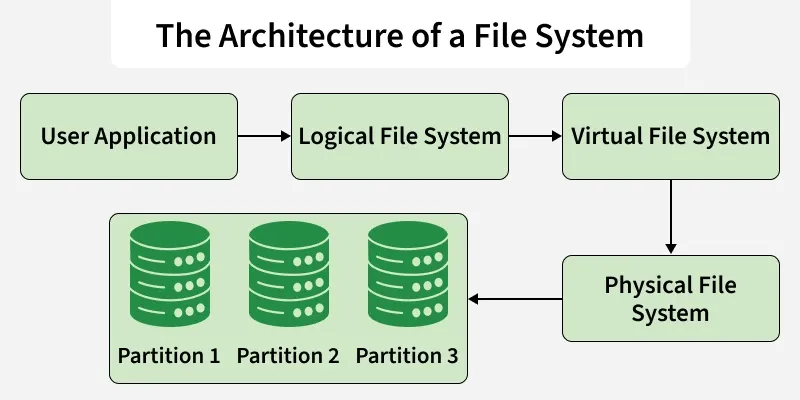
The Linux File System architecture is organized into three important layers, each responsible for different functionalities. This structure provide smooth file access, storage, and management.
Logical File System:
It is like a bridge of user and application. User interact with Linux kernel by this files or commands, yes yes all commands are also files. This layer handles key operations like open, read, write, move, copy and close like stuff. Provides security checks, such as permissions and file access control.
Virtual File System (VFS)
We have multiple files types in our system like video, audio, text, html etc. If we call commands for open, read, write or close in these types of file system(ext4, XFS, FAT32, NTFS, etc.) Linux kernel receives the request through the VFS layer. VFS layer then forewords it to the appropriate file system driver (ext4, XFS, etc.) that actually do operation to the file.
It Acts as an abstraction layer, hiding the internal complexities of each file system.Makes file operations uniform and compatible, regardless of the underlying file system format.
Physical File System
This directly interacts with the hardware and disk storage, manages data blocks, inodes, and physical memory allocation. It is responsible for writing data to the disk and retrieving it efficiently. This layer of file system ensures reliable storage, error handling, and low-level data management.
Characteristics of a File System
What Makes a File System Tick? The 6 Core Characteristics Explained
Have you ever wondered how your computer manages to keep track of thousands of photos, documents, and applications without losing a single byte? The secret sauce is the file system.
Think of a file system as the ultimate digital librarian for your storage device. It defines the exact structure, rules, and methods for how your data is organized, stored, accessed, and managed. While you might just see folders and files, there is a lot going on under the hood.
Here are the six fundamental characteristics that define every file system:
Space Management:
Playing Digital Tetris Storage space isn't infinite, so a file system has to be incredibly efficient with how it packs data onto a drive. It determines exactly how data is placed using blocks and allocation methods, while actively controlling fragmentation (which can slow your drive down). By expertly managing free blocks and allocation tables, it ensures that every megabyte is optimized.
Filenames:
The Rules of the Name Game Every file needs a name, but not just any name. The file system imposes strict rules on filename lengths, which characters are allowed (ever tried using a ? or : in a filename?), and whether or not the system is case-sensitive. This consistency prevents conflicts and ensures your files remain compatible across different operating systems.
Directories:
Keeping Things Tidy Imagine a library where all the books were just thrown into a massive pile. That's a drive without directories. A file system organizes files into a linear or, more commonly, a hierarchical structure (think folders within folders). It maintains a precise internal index to track files across these directories, making navigation seamless for both you and the operating system.
Metadata:
The Data About Your Data A file is more than just its contents. The file system stores essential background information—known as metadata—for every single file. This includes the file's size, its creation and modification timestamps, its exact file type, and its security permissions. The system relies on this hidden checklist to grant access and manage modifications safely.
Utilities:
Your Digital Toolbelt A file system isn't just a static vault; it’s an active workspace. It provides the core utilities you use every day: creating, deleting, copying, moving, and renaming files. Beyond these basics, it also supports advanced, heavy-duty functions like data backup, recovery tools, and strict access control management.
Design:
Setting the Boundaries Finally, every file system has its physical limits, dictated by its core design. Whether it’s the maximum size a single file can be, the total number of files it can hold, or its maximum storage capacity, these boundaries are hardcoded into its internal architecture. This fundamental design directly impacts how fast, reliable, and scalable your storage will be.
Directories
The / in the instruction above refers to the root directory. The root directory is the one from which all other directories branch off from. When you run tree and tell it to start with /, you will see the whole directory tree, all directories and all the sub directories in the whole system, with all their files, fly by.
Don’t feel overwhelmed, though. Instead, try this:
tree -L 1 /
And you should see what is shown in Figure 1.
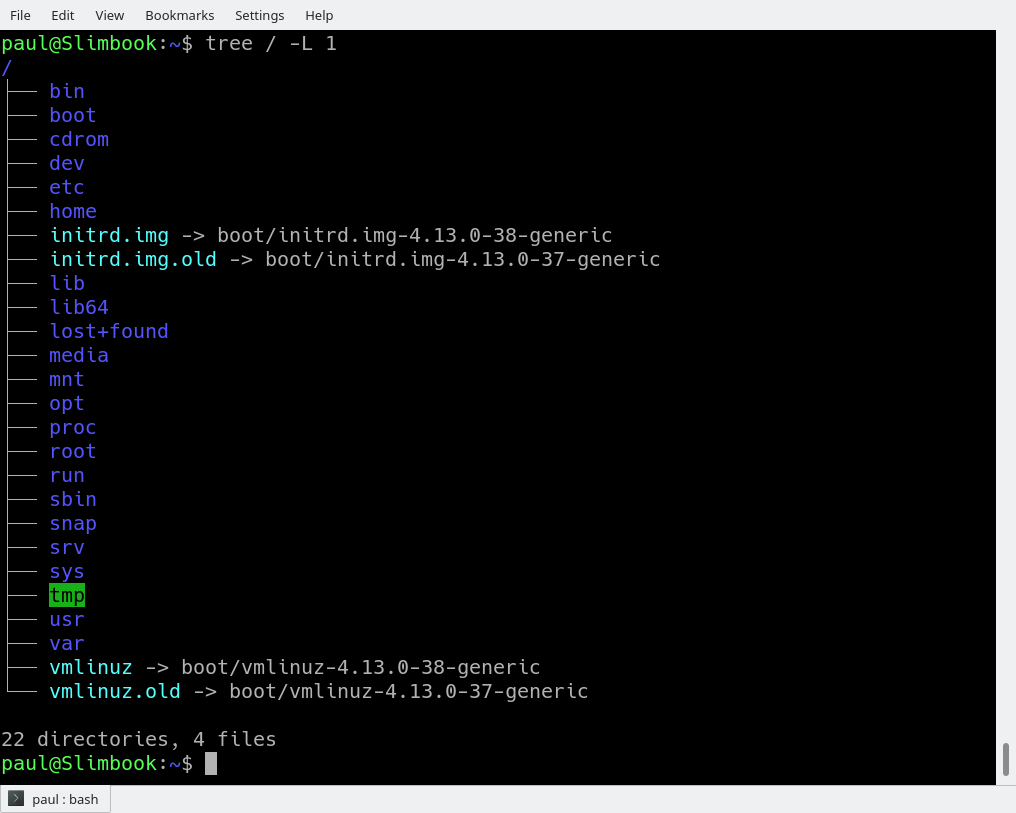
The instruction above can be translated as “show me only the 1st Level of the directory tree starting at / (root)“. The -L option tells tree how many levels down you want to see.
Most Linux distributions will show you the same or a very similar layout to what you can see in the image above. This means that even if you feel confused now, master this, and you will have a handle on most, if not all, Linux installations in the whole wide world.
To get you started on the road to mastery, let’s look at what each directory is used for. While we go through each, you can peek at their contents using ls.
/Bin
/bin is the directory that contains binaries, that is, some of the applications and programs you can run. You will find the ls program mentioned above in this directory, as well as other basic tools for making and removing files and directories, moving them around, and so on. There are more bin directories in other parts of the file system tree, but we’ll be talking about those in a minute.
/boot
The /boot directory contains files required for starting your system. Do I have to say this? Okay, I’ll say it: DO NOT TOUCH!. If you mess up one of the files in here, you may not be able to run your Linux and it is a pain to repair. On the other hand, don’t worry too much about destroying your system by accident: you have to have superuser privileges to do that.
/dev
/dev contains device files. Many of these are generated at boot time or even on the fly. For example, if you plug in a new webcam or a USB pendrive into your machine, a new device entry will automagically pop up here.
/etc
/etc is like secret control room, which control the whole system. Think of the /etc directory as the master control room for your operating system. If Linux wants to know how to behave, who is allowed to log in, or how to connect to the internet, it checks /etc first.
Unlike the hidden configuration files in your personal home folder (which only apply to you), the files inside /etc dictate system-wide behavior. When you change a setting here, it affects the entire machine and every user on it.
You won't find any runnable apps or binary programs hiding in here. The /etc directory is strictly reserved for static configuration text files.
/home
/home is where you will find your users’ personal directories. In my case, under /home there are two directories: /home/manas, which contains all my stuff; and /home/guest, in case anybody needs to borrow my computer.
/lib
/lib is where libraries live. Libraries are files containing code that your applications can use. They contain snippets of code that applications use to draw windows on your desktop, control peripherals, or send files to your hard disk.
There are more lib directories scattered around the file system, but this one, the one hanging directly off of / is special in that, among other things, it contains the all-important kernel modules. The kernel modules are drivers that make things like your video card, sound card, WiFi, printer, and so on, work.
/media
The /media directory is where external storage will be automatically mounted when you plug it in and try to access it.
/opt
Ever wonder where the "outsider" apps live in Linux? Meet the /opt directory—the designated home for optional, third-party software.
While your Linux package manager neatly distributes standard system applications across several different folders, proprietary software (like Google Chrome, Zoom, or commercial software suites) usually prefers to keep all its files bundled tightly together. Instead of scattering their code across your operating system, these self-contained applications get dropped right into /opt.
/proc
/proc is a virtual file system. It is created entirely in your computer's RAM by the Linux kernel the moment you boot up, and it vanishes the second you shut down. It acts as a live, real-time dashboard of everything happening inside your machine.
When you open /proc, you will see dozens of folders named only with numbers (like /proc/1042). These numbers correspond to the Process IDs (PIDs) of every application currently running on your system. Want to know exactly what a specific background app is doing? Its numbered folder holds all the secrets—what commands started it, how much memory it's eating, and what files it has open.
/proc is the easiest place to get hardware information without installing any extra tools. Reading the text file /proc/cpuinfo tells you everything about your processor, while /proc/meminfo gives you a live readout of your RAM usage.
/root
/root is the home directory of the superuser (also known as the “Administrator”) of the system. It is separate from the rest of the users’ home directories BECAUSE YOU ARE NOT MEANT TO TOUCH IT. Keep your own stuff in your own directories, people.
/sbin
This directory houses the crucial executable programs needed to boot, restore, recover, and maintain the system. Because these commands have the power to fundamentally alter your hardware configuration or completely wipe a drive, they are reserved almost exclusively for the system administrator (root).
/usr
Historically, the /usr directory is where user home folders lived. Today, it stands for Unix System Resources, and it is by far the largest and most crowded folder on your Linux hard drive.
Think of /usr as a sprawling public shopping mall for your operating system. While the root directories hold just the bare essentials needed to boot your computer, /usr holds almost everything else you interact with daily.
If you wander the aisles, here is what you will find:
/usr/bin: The main storefront containing your everyday executable applications, from your web browser to programming tools./usr/lib: The warehouse of shared code libraries that those applications rely on to run properly./usr/share: The public library storing system-wide resources like desktop icons, fonts, and manual pages./usr/local: The custom shop where software you build yourself from source code is installed, keeping it safely separated from official system updates.
Even though it is packed with software, /usr is strictly for system files. It provides all the tools you need to do your work, but your personal documents and configurations stay safely tucked away in your /home folder!